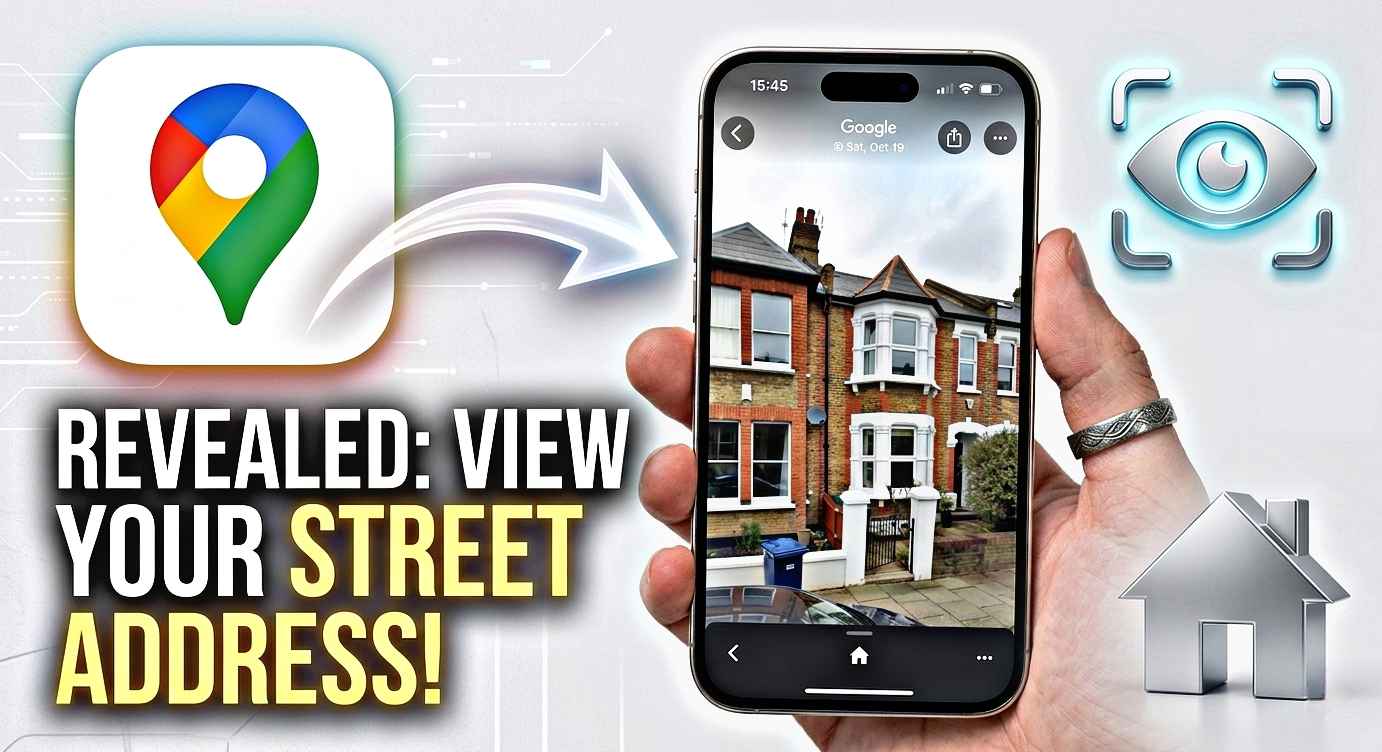
So here’s what happened to me about a year ago. I was video-calling my parents overseas, trying to describe the new house I’d just moved into. Words weren’t doing it. I started gesturing wildly at my phone screen, saying things like “it’s the one with the reddish roof, sort of near the big tree.” They had no idea what I was talking about.
Then a friend on the call casually said, “just show them on Google Maps, you can see it in 3D.” I’d been using Google Maps for years at that point and had literally no idea this was a thing. I fumbled around for about three minutes, pinched and zoomed in the wrong direction, accidentally launched Street View twice — and then finally, there it was. My house. In 3D. Rotating slowly on my screen like something out of a sci-fi movie.
My parents were floored. I was floored. And a tiny part of me was annoyed that nobody had told me this earlier.
If you’ve ever tried to find your home in 3D on a map app and ended up lost in a flat satellite view, this guide is for you. I’m going to walk you through exactly how to do it on different apps in 2026 — no unnecessary jargon, no vague instructions like “enable the 3D layer.” Just the real steps that actually work.
Why 3D map views are actually useful (not just cool-looking)
Before we get into the how, let me quickly say why this matters beyond the wow factor. I’ve used 3D map views to:
- Show relatives abroad what my neighborhood looks like
- Plan a roof assessment by getting a rough aerial angle on slopes
- Scout a hotel’s surroundings before booking
- Check how close my apartment is to a noisy road (you can tell a lot from the 3D elevation)
- Just, honestly, kill 20 minutes exploring random cities
It’s one of those features that sounds gimmicky until you need it — and then you use it all the time.
The apps that actually do 3D views in 2026
Not every map app does this well. Here’s what’s currently worth using:
🗺️
Google Maps
Best 3D coverage globally. Works on Android & iOS.
🍎
Apple Maps
Stunning 3D in major cities. iOS only, but very polished.
🛰️
Google Earth
The most detailed 3D you’ll find. Free on both platforms.
📍
Bing Maps
Has a solid Bird’s Eye view. Great for the US and parts of Europe.
How to view your home in 3D on Google Maps (step by step)
This works on both iPhone and Android. Make sure you have the latest version of the app — some older versions don’t support the tilt gesture properly.
- 1Open Google Maps and search for your home address. Let it zoom into your location.
- 2Tap the layers icon (top right corner — it looks like a stack of squares). Select “Satellite” view. You’ll see your area from above.
- 3Here’s the part nobody tells you: use two fingers and drag upward on the screen. This tilts the map into a 3D perspective. Don’t swipe — drag upward slowly with two fingers held together.
- 4Rotate using two fingers in a circular motion to change your viewing angle.
- 5Zoom in with a standard pinch gesture until your house fills the screen.
The two-finger upward drag is the key. I spent an embarrassingly long time trying to find a “3D button” in the menus. There isn’t one in Google Maps. It’s all gesture-based.
One thing I noticed: 3D models are much more detailed in dense urban areas. In my suburban neighborhood, the buildings are rendered as simple boxy shapes. If you zoom into central London or Manhattan, you get proper detailed skyscrapers with textures. Rural areas are mostly flat even in satellite mode.
How to do it on Apple Maps (iOS)
Apple Maps has quietly become excellent for this, especially in cities where they’ve captured detailed 3D imagery. The feature is called “Flyover” for landmarks, but regular 3D works everywhere.
- 1Search for your address in Apple Maps.
- 2Tap the map type selector (three horizontal lines in the top right). Switch to “Satellite.”
- 3Same gesture as Google Maps: two fingers, drag upward. The map tilts into 3D.
- 4For cities with Flyover support, tap the location pin and look for a “Flyover” button in the bottom card. This launches an immersive 3D tour you can control.
Apple Maps’ 3D rendering of supported cities is genuinely stunning. I looked up Dubai once and the buildings had actual window textures and shadows that shifted as I rotated. Google Maps is broader in coverage; Apple is deeper in quality for places it covers.
Using Google Earth for the best 3D view of your home
If you really want to see your home properly in 3D, skip the map apps and download Google Earth. It’s a separate free app (iOS and Android) and it’s a completely different experience.
- 1Download Google Earth from your app store. Open it — the globe appears and it’s immediately satisfying.
- 2Tap the search icon and type your address.
- 3Google Earth flies you to the location automatically. The animation alone is worth it.
- 4Tilt with two fingers (drag upward) to shift into a low-angle 3D view.
- 5Try the “Voyager” feature for curated guided tours of 3D locations around the world.
One thing I genuinely didn’t expect: Google Earth also shows historical imagery. Tap the clock icon and you can scrub back through years of satellite images. I found a view of my childhood neighborhood from over a decade ago. The old tree in front of the house was still there. It was unexpectedly emotional, honestly.
What the 3D view can and can’t show you
This is where managing expectations matters. I’ve seen people get confused when their house looks like a beige rectangle in the 3D view while a famous building looks photo-realistic. Here’s why:
The detailed 3D models you see in major cities come from dedicated photogrammetry flights — planes or drones that capture thousands of overlapping photos and then stitch them into 3D meshes. This process is expensive and time-consuming. Most residential neighborhoods get the cheaper version: satellite imagery draped over automatically-generated elevation data. So your house will look like a box with a correctly-colored roof. Not a photo. Just a shaped model.
That said, the roof color, lot size, relative position to neighbors, and surrounding street layout are all accurate. It’s useful. It’s just not a miniature photograph of your house.
Common mistakes people make (that I made first)
Things that don’t work the way you’d expect
Looking for a “3D mode” toggle in the settings menu. It doesn’t exist in Google Maps. The 3D view is triggered entirely by the two-finger upward drag gesture — there’s no toggle to flip.
Trying to get 3D in standard map view. You have to switch to Satellite first. In standard (road) map view, buildings show as 2D footprints no matter how you gesture.
Expecting photo quality for a suburban house. Like I said above — residential 3D is model-based, not photographic. It’s still genuinely useful, just different.
Using an outdated version of the app. I tried this on an old iPhone that hadn’t updated Google Maps in months and the tilt gesture barely worked. Update first.
Confusing Street View with 3D view. They’re separate features. Street View puts you at ground level inside a 360° photo. 3D view is the aerial tilted perspective from above.
Quick comparison: which app for which situation
I’ve tried all of these across different situations, and here’s the honest breakdown:
- Google Maps — best for everyday use. Most coverage globally. Good if you want 3D plus navigation.
- Apple Maps — best visual quality in supported cities. Use this if you’re on iPhone and in a major metro area.
- Google Earth — best for exploration and historical imagery. Slightly slower but the most immersive experience.
- Bing Maps — worth trying if the other apps show flat results. Their Bird’s Eye view sometimes has coverage where Google doesn’t.
What’s improved in 2026 specifically
The 3D coverage has expanded noticeably compared to even two years ago. Google and Apple have both been pushing updates to their 3D datasets. A few specific things I noticed recently:
Apple Maps added Flyover for a large number of additional cities across South and Southeast Asia this year. If you’re in Singapore, Bangkok, or Mumbai, the detail level is now genuinely impressive. Google Earth also improved its resolution in smaller African and Latin American cities — it used to be quite blurry in those regions.
There’s also been a quiet improvement in update frequency. Satellite imagery used to feel months or years out of date in residential areas. New construction that was finished recently is showing up on map apps much faster than it used to. My neighbor built an extension last year and it appeared in the satellite view within a few months — that would have taken much longer previously.
A few things I wish I’d known earlier
The compass in the top right corner of Google Maps resets your north orientation. If you’ve been rotating around your house and lost track of which way is north, tap that compass to snap back. Obvious in hindsight, not obvious when you’re spinning around trying to find the back garden.
Also: you can screenshot and share these 3D views. People often forget this. If you’re trying to show someone where you live, screenshot the 3D view, maybe draw an arrow with your phone’s markup tool, and send it. Much clearer than trying to describe it.
And if you want to find out when the satellite image of your area was captured, there’s a subtle timestamp in Google Earth when you tap on an area. Usually shown in small print near the image controls. It’s handy to know if the image is recent or from a few years back — affects how useful it is for anything time-sensitive.
The whole thing takes about 30 seconds once you know what you’re doing. The two-finger upward drag gesture is really the only non-obvious step in the whole process. Once that clicks, everything else follows naturally.
I’ve shown this to probably a dozen friends and family members now, and the reaction is always the same — genuine surprise that this is a free thing sitting inside an app they already have on their phone. It’s one of those features that deserves more attention than it gets.
Try it now — open Google Maps, search your address, switch to satellite, and drag two fingers upward. I’ll bet you end up zooming around your neighborhood for longer than you intended.