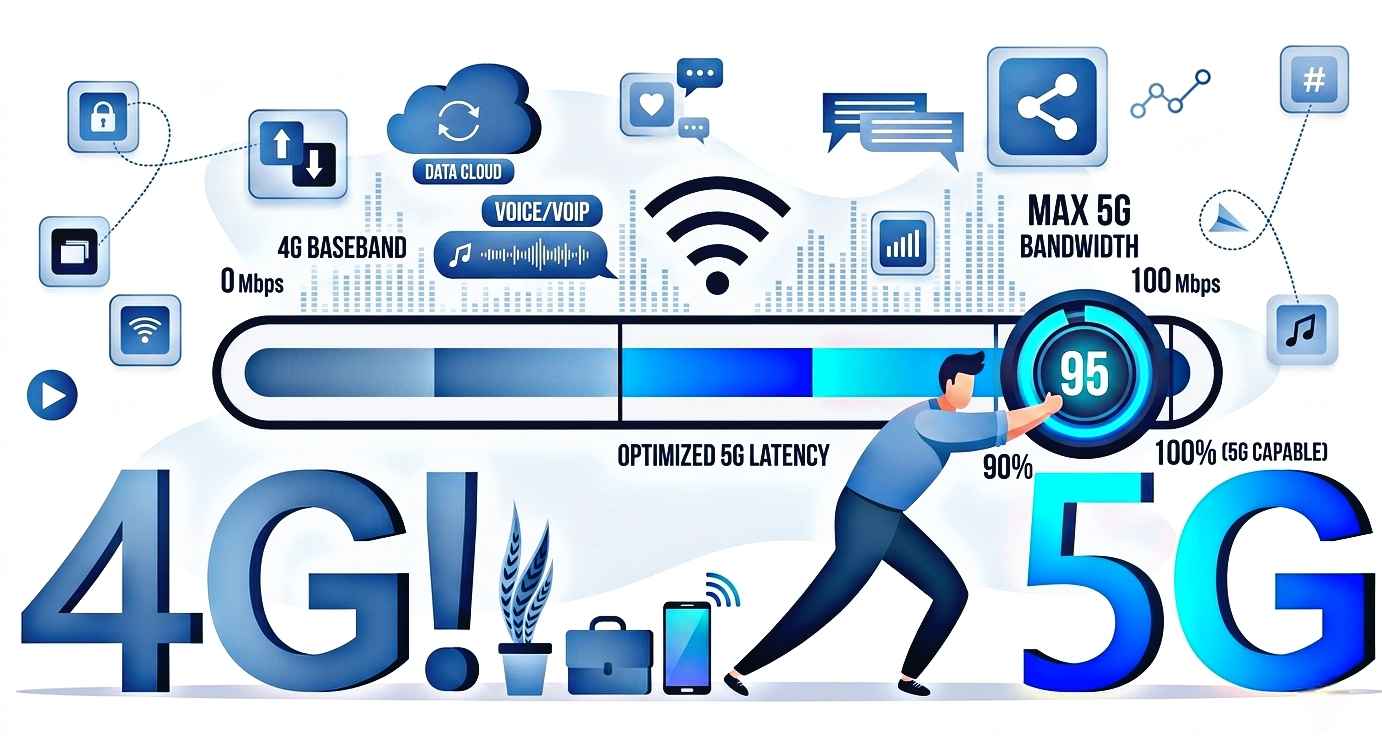
A few weeks ago, I was helping a friend who kept complaining that his internet was painfully slow. Videos were buffering, apps took forever to load, and even simple web browsing felt frustrating. He was convinced his mobile network provider was the problem.
But after checking his phone, I discovered something surprising.
His Android phone was still set to a network mode that frequently switched between older and newer network technologies. Within a couple of minutes, I adjusted a few settings, locked the phone to the best available network mode, and the difference was noticeable almost immediately.
If you’ve ever wondered why your expensive Android phone still feels slow online, your network settings could be one of the reasons.
In this guide, I’ll show you how to set 4G or 5G on your Android phone in 2026 and share some practical tips that have genuinely helped me improve mobile internet performance on multiple devices.
Why Your Phone Might Not Be Using the Fastest Network
Many people assume that if they own a 5G phone, they’re automatically getting 5G speeds all the time.
That’s not how it works.
Android phones constantly switch between network technologies depending on signal strength, carrier settings, battery-saving features, and location. Sometimes the phone stays connected to a slower network even when a faster one is available.
I’ve seen this happen on phones from Samsung, Xiaomi, Vivo, Oppo, Realme, and even Google Pixel devices.
The result?
- Slow downloads
- Buffering videos
- Laggy social media apps
- Poor video calls
- Longer app update times
Fortunately, checking and changing the network mode is usually easy.
How to Set 4G or 5G on Android Phone
The exact menu may vary depending on your phone brand, but the overall process is very similar.
Method 1: Through Android Settings
- Open Settings
- Tap Mobile Network or SIM Cards & Mobile Networks
- Select your active SIM card
- Tap Preferred Network Type
- Choose one of the following:
- 5G/4G/3G/2G (Auto)
- 5G Preferred
- LTE/4G
- NR/LTE (on some devices)
If your area supports 5G and your carrier offers it, selecting a 5G option can help you access faster mobile data speeds.
If 5G isn’t available, choosing LTE or 4G often provides the most stable experience.
Method 2: Quick Search in Settings
Modern Android phones have a built-in settings search feature.
Simply:
- Open Settings
- Tap the search icon
- Type “Network Type”
- Open the matching result
This method saves time, especially if your phone’s menus are heavily customized.
How to Check If Your Phone Supports 5G
Before changing anything, make sure your device actually supports 5G.
You can:
- Check the phone specifications
- Visit the manufacturer’s website
- Search your device model online
- Look for a 5G icon in the status bar
Many Android phones released during the last few years already include 5G support.
Examples include:
- Samsung Galaxy A series
- Samsung Galaxy S series
- Google Pixel devices
- Xiaomi Redmi Note models
- Vivo V series
- Oppo Reno series
- Realme Number series
Even if your phone supports 5G, your SIM card and carrier plan must also support it.
My Real-Life Experience Switching to 5G
When 5G first became available in my area, I expected a massive speed increase immediately.
That didn’t happen.
The phone was still set to a default network configuration that frequently switched between different signal types. Downloads felt inconsistent.
After changing the preferred network settings and updating the carrier profile, speeds became much more stable.
The biggest difference wasn’t necessarily maximum speed.
It was consistency.
Web pages loaded faster, cloud backups completed quicker, and streaming videos started almost instantly.
That’s something many people overlook when they talk about mobile internet performance.
What If You Don’t Have a 5G Signal?
Don’t worry.
A strong 4G LTE connection is often better than a weak 5G connection.
I learned this while traveling through several areas where 5G coverage was limited.
In some locations, forcing the phone to stay on LTE actually provided:
- Better stability
- Lower battery usage
- More reliable calls
- Faster real-world browsing
If your phone keeps jumping between networks, testing LTE-only mode for a few hours can sometimes improve your experience.
Additional Tips to Improve Mobile Internet Speed
Changing network mode helps, but it’s not the only factor.
Here are some tricks I regularly use.
Restart Your Phone
This sounds simple, but it works.
A restart refreshes network connections and clears temporary issues.
I’ve fixed countless connectivity problems with a simple reboot.
Update Carrier Settings
Many Android phones receive carrier configuration updates.
These updates improve compatibility with mobile networks and sometimes boost performance.
Check:
Settings → System Updates
and install any available updates.
Reset Network Settings
If you’ve been experiencing connection problems for a long time, resetting network settings can help.
Go to:
Settings → System → Reset Options → Reset Network Settings
Keep in mind that this removes saved Wi-Fi passwords and Bluetooth pairings.
Remove Unused VPN Apps
Some VPN apps slow down internet traffic significantly.
I once tested a free VPN that reduced my download speed by more than half.
If you’re troubleshooting slow internet, temporarily disable VPN services and compare results.
Check Signal Strength
Even the best network settings can’t overcome poor signal coverage.
Try moving near:
- Windows
- Open spaces
- Higher floors
Sometimes a small change in position makes a noticeable difference.
Hidden Android Network Testing Menu
Some Android devices include advanced network testing options.
You can access them using special dialer codes on compatible devices.
These menus allow users to:
- View signal information
- Check network status
- Change preferred network modes
However, I recommend caution.
Changing unknown settings can cause connectivity issues.
Unless you know exactly what you’re doing, the standard Android settings menu is usually sufficient.
Common Mistakes People Make
Over the years, I’ve noticed the same mistakes happening repeatedly.
Assuming 5G Is Always Faster
A weak 5G signal can perform worse than strong LTE.
Always test both if speed is important.
Ignoring Carrier Coverage
Some people spend hours adjusting phone settings when the real issue is network coverage in their area.
Coverage maps can provide useful information.
Using Battery Saver All the Time
Aggressive battery-saving modes sometimes limit network performance.
If you’re troubleshooting slow internet, temporarily disable battery saver and compare results.
Never Updating the Phone
Software updates often contain network optimizations and bug fixes.
Running outdated software can affect performance.
Installing Random “Internet Booster” Apps
I’ve tested many of these apps over the years.
Most don’t improve speed at all.
Some simply display ads while changing settings that Android already allows you to modify manually.
Stick to trusted solutions instead.
Does Forcing 5G Drain Battery Faster?
In many cases, yes.
When 5G coverage is weak, the phone works harder to maintain the connection.
This can increase battery usage.
On days when I know I’ll be away from a charger for a long time, I sometimes switch back to LTE if 5G coverage is inconsistent.
The battery difference can be noticeable.
Best Network Setting for Most Users in 2026
For most Android users, the ideal setting is:
5G/4G Auto Mode
Why?
Because it allows the phone to use 5G when available while falling back to LTE when necessary.
If your carrier’s 5G network is strong and stable, this option usually delivers the best balance between speed, coverage, and battery life.
Final Thoughts
If your Android phone feels slower than it should, checking the preferred network mode is one of the easiest things you can do. It only takes a minute, requires no special apps, and can noticeably improve browsing, streaming, gaming, and downloads.
I’ve tested this on multiple Android devices over the years, and while it won’t magically create a stronger signal where none exists, it can help your phone connect more efficiently to the fastest network available.
Before spending money on new hardware or blaming your carrier, spend a few minutes reviewing your network settings. Sometimes the solution is much simpler than people expect.