A few months ago, I handed my phone to a friend so he could make a quick call. While he was searching for the dialer, he accidentally opened my gallery. Nothing embarrassing was there, but that small moment reminded me how much personal information we keep on our phones.
Photos, screenshots, banking apps, private documents, work files, and personal notes all sit in one device that we carry everywhere. Most Android phones offer some privacy features, but I wanted something a little more discreet.
That’s when I started using a calculator vault app.
At first, I thought these apps were gimmicks. A calculator that secretly hides photos and apps sounded like something from an old spy movie. After testing a few options, I realized they can actually be useful when used responsibly.
If you’ve ever wanted an easy way to keep private photos or apps away from curious eyes, this guide will show you exactly how it works in 2026.
What Is a Calculator Vault App?
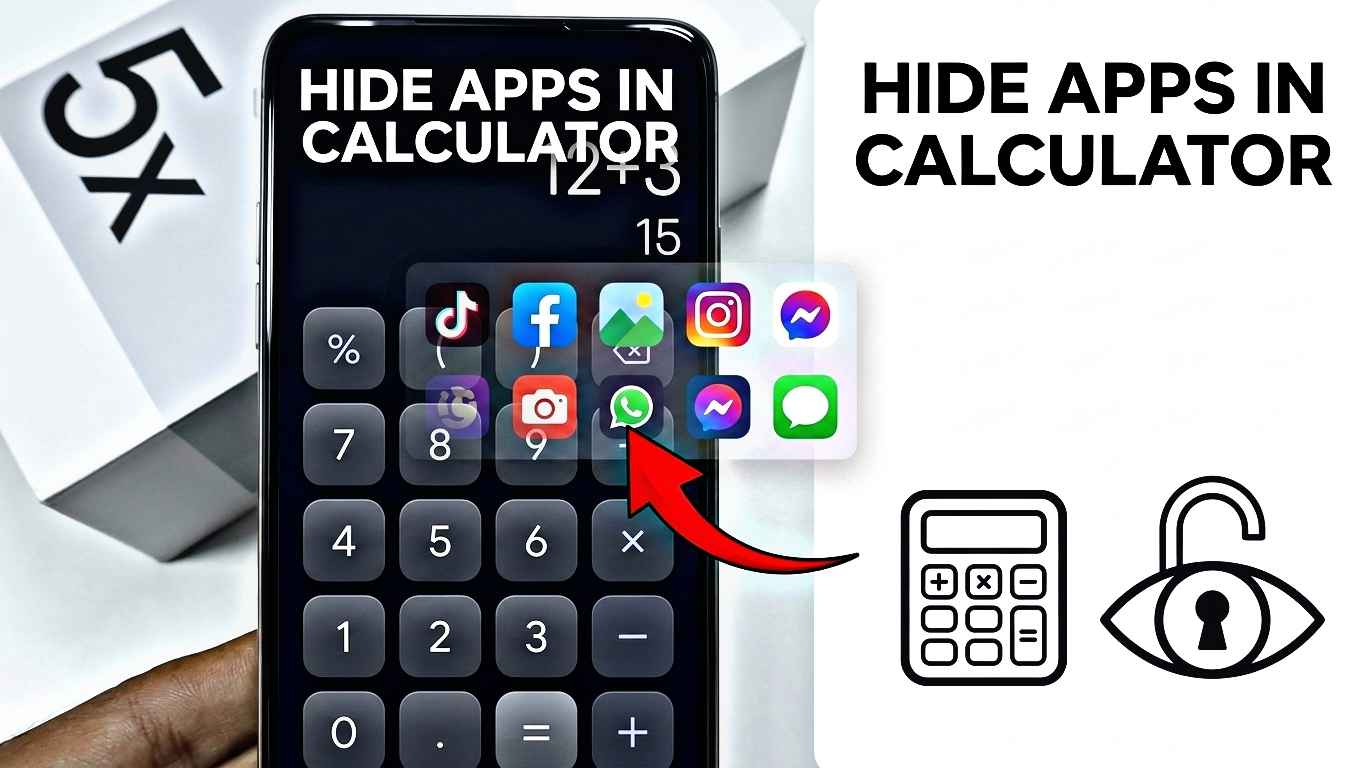
A calculator vault app looks like a normal calculator on the outside. Anyone opening it sees a standard calculator interface.
The hidden feature appears only when you enter a specific PIN code, password, or pattern.
Once unlocked, the app can store:
- Private photos
- Videos
- Documents
- Notes
- Hidden apps (on supported devices)
- Personal files
The main idea is simple: nobody suspects a calculator app is actually a private vault.
Why People Use Calculator Vault Apps
Over the last few years, I noticed many Android users rely on these apps for everyday privacy rather than secrecy.
Some common reasons include:
Keeping Personal Photos Private
Not every photo is meant for social media or public viewing. Many people store family pictures, travel memories, or important screenshots that they don’t want others browsing through.
Protecting Work Documents
Freelancers and remote workers often keep contracts, invoices, and confidential files on their phones.
Hiding Sensitive Apps
Some users prefer hiding banking apps, investment apps, or personal messaging apps from their home screen.
Extra Layer of Security
Even if someone unlocks your phone, they still need another password to access hidden content.
My Experience Testing Calculator Vault Apps
I tested several calculator vault applications on different Android devices.
A few worked perfectly, while others felt unreliable.
One mistake I made early on was choosing an app simply because it had flashy advertisements. After moving dozens of photos into the vault, the app started crashing.
Thankfully, I had backups.
That experience taught me something important:
Never trust any vault app with your only copy of important files.
Always keep a backup in cloud storage or on your computer.
Popular Calculator Vault Apps in 2026
Some commonly used options include:
- Calculator Vault
- HideU
- App Hider
- Calculator Lock
- Vaulty
- Keepsafe Photo Vault
Features vary depending on your Android version and phone manufacturer.
Before installing any app, check:
- User reviews
- Recent updates
- Permissions requested
- Developer reputation
If a calculator app asks for unnecessary permissions, that’s usually a warning sign.
How to Hide Photos in a Calculator App
The process is surprisingly simple.
Step 1: Install a Trusted Calculator Vault App
Open the Google Play Store and choose a well-reviewed calculator vault application.
After installation, launch the app.
Step 2: Set Your Secret Password
During setup, you’ll create:
- PIN code
- Password
- Pattern lock
Choose something unique.
Avoid common combinations like:
- 1234
- 0000
- Birth year
Step 3: Access the Hidden Vault
Most apps require entering the PIN directly into the calculator interface.
Once entered correctly, the hidden storage area opens.
Step 4: Import Photos
Tap:
“Add Photos” or “Import Files”
Select the images you want to protect.
The app copies or moves them into the secure vault.
Step 5: Remove Original Copies
Many vault apps ask whether you want to delete the original files from the gallery.
Read carefully before confirming.
I usually verify that the photos are visible inside the vault first before deleting originals.
That extra minute can prevent accidental data loss.
How to Hide Apps Inside a Calculator App
Some calculator vault apps also include app-hiding features.
The exact process depends on your Android version.
Step 1: Open App Hiding Section
Inside the vault app, locate:
- App Hide
- Hidden Apps
- Clone Apps
Step 2: Grant Required Permissions
Android may request permissions related to:
- Accessibility
- Device administration
- Overlay access
Only grant permissions that are necessary for the feature you want to use.
Step 3: Select Apps to Hide
Choose the apps you want hidden.
Examples include:
- Banking apps
- Messaging apps
- Personal journals
- Finance trackers
Step 4: Verify Functionality
Open the hidden app through the vault to ensure everything works correctly.
Some older devices may experience compatibility issues.
Things That Surprised Me
When I first started using a calculator vault, I assumed it was only about hiding files.
But some modern apps offer additional features:
Intruder Selfie
If someone enters the wrong password, the app secretly captures a photo using the front camera.
Fake Vault Mode
Some apps create a second vault with harmless content.
If someone forces you to unlock the app, they only see the fake vault.
Cloud Backup
Many apps now support encrypted cloud backups.
This can be useful when changing phones.
Fingerprint Unlock
Entering a PIN every time becomes annoying.
Fingerprint authentication makes access much faster while maintaining security.
Common Mistakes to Avoid
After experimenting with different vault apps, these are the mistakes I see most often.
Forgetting the Password
This sounds obvious, but it happens frequently.
Store your recovery information somewhere safe.
Not Backing Up Files
Never rely on a single app.
Always keep backups of important photos and documents.
Using Unknown Apps
A random vault app with very few downloads may not be trustworthy.
Choose established applications with positive reviews.
Ignoring App Updates
Security vulnerabilities get fixed through updates.
Keeping apps updated helps protect your data.
Hiding System Apps
Avoid hiding essential Android system apps.
Doing so can sometimes cause unexpected issues.
Are Calculator Vault Apps Safe?
The answer depends on the app you choose.
A reputable calculator vault app can provide an extra privacy layer.
However, no app is perfect.
For maximum security:
- Use a strong phone lock screen.
- Enable fingerprint or face unlock.
- Turn on encrypted backups.
- Keep Android updated.
- Download apps only from trusted sources.
Think of a calculator vault as an additional privacy tool rather than your only security measure.
Alternative Privacy Options in 2026
Calculator vault apps aren’t the only solution anymore.
Many Android phones now include built-in privacy features.
Examples include:
- Secure Folder
- Private Space
- Hidden Album
- Locked Folder
- App Lock features
These built-in tools often integrate more smoothly with the operating system.
If your phone already offers them, they may be worth trying before installing third-party apps.
Who Should Use a Calculator Vault App?
A calculator vault app can be useful for:
- Students
- Professionals
- Freelancers
- Content creators
- Anyone sharing their phone with family members
It’s less about hiding things and more about controlling who can access your personal information.
Privacy is becoming more important every year, and smartphones now hold much more than photos and videos.
They contain financial information, work documents, personal conversations, and digital identities.
For many Android users, a calculator vault app offers a simple and practical way to keep that information private without making everyday phone use complicated.
If you decide to try one, choose a trusted app, create a strong password, and keep regular backups. Those three habits will save you far more trouble than any privacy app ever could.