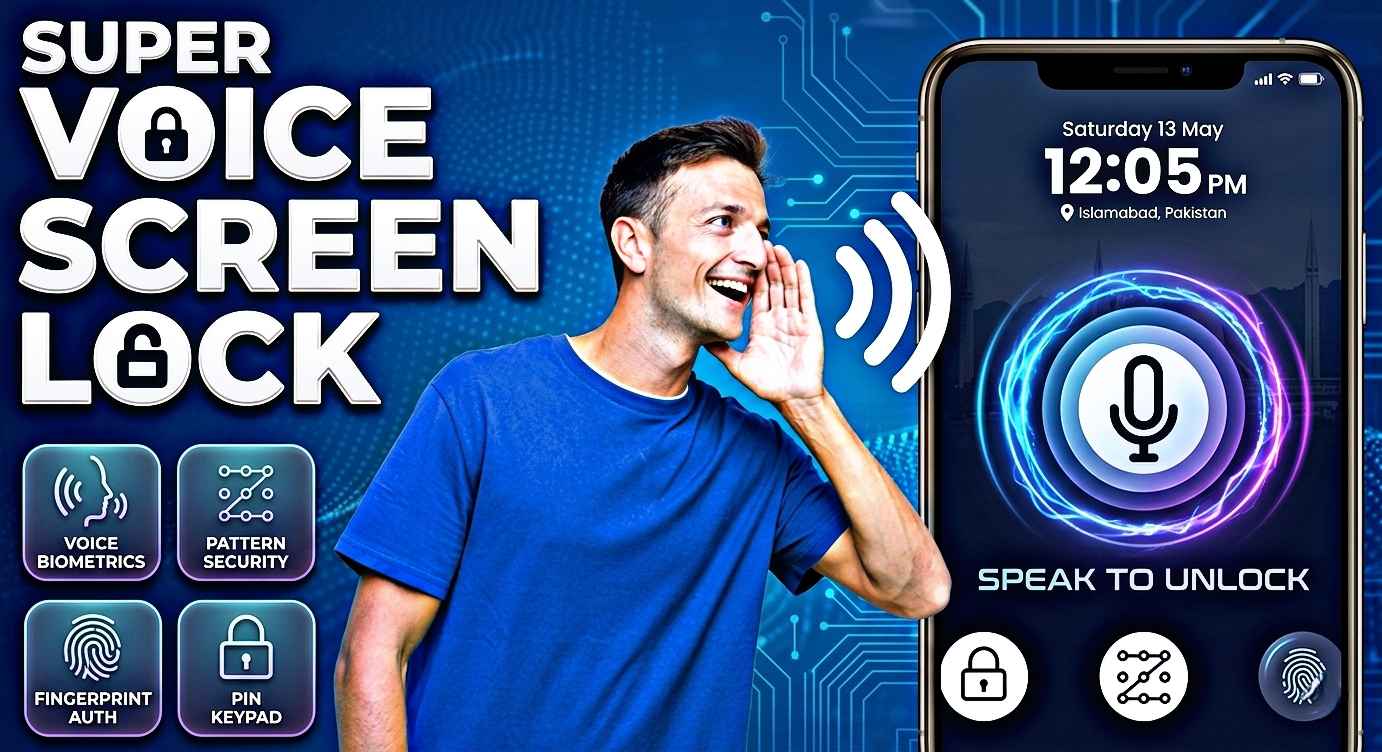
A few months ago, I was sitting with a friend who had just bought a new Android phone. While showing off its features, he asked me a simple question:
“Can I unlock my phone with my voice?”
At first, I thought he meant Google Assistant. But he was actually talking about a voice lock screen — something that unlocks the phone when a specific voice phrase is spoken.
That conversation made me curious, so I spent some time testing different voice lock apps, Android settings, and security options. Some methods worked surprisingly well, while others felt more like a fun trick than real security.
If you’ve been wondering how to set a voice lock on your Android phone in 2026, this guide will walk you through everything I’ve learned, including the safest way to do it and the mistakes you should avoid.
Can Android Phones Really Use Voice Lock?
The short answer is yes — but with some limitations.
Most Android phones don’t include a built-in voice lock feature as the primary screen lock. Android manufacturers focus on fingerprint scanners, facial recognition, PINs, and passwords because they’re generally more secure.
However, you can still add voice-based unlocking through certain apps and smart features.
I’ve tested this on Samsung, Xiaomi, Realme, Vivo, Oppo, and Motorola devices, and the experience is fairly similar across brands.
Why People Want a Voice Lock
There are several reasons users look for voice unlocking:
- It feels futuristic.
- It can be convenient when your hands are occupied.
- It adds a personalized touch.
- Friends and family usually find it interesting.
- It makes your phone feel unique.
I remember setting one up on an old Android phone just for fun. Watching the device react to a custom phrase definitely impressed a few people.
That said, convenience and security aren’t always the same thing.
Method 1: Use a Voice Lock App
The easiest way to add voice lock functionality is through third-party apps available on the Google Play Store.
Some popular options include:
- Voice Screen Lock
- Voice Lock Screen
- Smart Voice Lock
- Voice Password Lock Screen
Features vary depending on the app, but most allow you to:
- Record a voice phrase
- Create a backup PIN
- Customize lock screen themes
- Add security questions
Step-by-Step Setup
Step 1: Install a Voice Lock App
Open the Google Play Store and search for:
“Voice Lock Screen”
Choose a well-rated app with recent updates.
Always read reviews before installing. I once downloaded a voice lock app that looked great in screenshots but was packed with ads and barely worked.
Step 2: Grant Required Permissions
Most apps require:
- Microphone access
- Accessibility permissions
- Lock screen permissions
Read permission requests carefully.
If an app asks for unrelated permissions such as access to contacts or SMS messages, think twice before proceeding.
Step 3: Record Your Voice Password
Choose a phrase that’s easy for you to remember.
Examples:
- “Unlock my phone”
- “Open sesame”
- “Hello Android”
- Any custom phrase you prefer
Record the phrase clearly in a quiet environment.
This part matters more than many people realize.
When I first tested voice lock, I recorded my phrase while a TV was playing in the background. The phone struggled to recognize my voice later.
A quiet room gives much better results.
Step 4: Set a Backup PIN
Never skip this step.
Voice recognition can occasionally fail because of:
- Background noise
- Illness affecting your voice
- Microphone issues
- App glitches
A backup PIN ensures you won’t get locked out of your own device.
Step 5: Test the Lock
Lock your phone.
Wait a few seconds and try unlocking it using your recorded phrase.
Test from different distances and speaking volumes.
You’ll quickly discover what works best.
Method 2: Use Google Assistant Voice Features
Many people confuse Google Assistant voice recognition with a true voice lock.
While Google Assistant can recognize your voice, modern Android versions don’t generally allow voice-only unlocking of a fully locked device due to security concerns.
However, you can still use voice commands after authentication.
How to Set Up Voice Match
- Open Settings.
- Go to Google Settings.
- Select Google Assistant.
- Open Voice Match.
- Enable Voice Match.
- Train Google Assistant to recognize your voice.
This improves voice recognition for Assistant features.
Method 3: Combine Voice Control With Smart Lock Features
This is actually my favorite approach.
Android’s Smart Lock features can make your phone feel almost voice-unlocked without sacrificing too much security.
Examples include:
- Trusted locations
- Trusted devices
- Wearable connections
- Car Bluetooth systems
Imagine you’re at home.
Your phone remains unlocked because it’s connected to your trusted Wi-Fi or smartwatch. Then you use voice commands through Google Assistant instantly.
The experience feels seamless.
Real-Life Testing Results
After testing several voice lock solutions on different Android phones, I noticed a few interesting things.
Quiet Rooms
Voice unlocking usually works very well.
Recognition accuracy is often high when conditions are ideal.
Busy Streets
Performance drops noticeably.
Traffic noise, conversations, and wind can interfere with recognition.
Different Moods and Voices
This surprised me.
When I had a sore throat, one voice lock app struggled to recognize me.
Apparently, even small changes in your voice can affect accuracy.
Shared Spaces
If multiple people are around, accidental triggers can happen depending on the app.
This is one reason manufacturers don’t rely on voice recognition alone for device security.
Common Mistakes People Make
Using Extremely Simple Phrases
Avoid phrases like:
- Hello
- Open
- Unlock
Common words may increase the chance of false recognition.
Choose something unique.
Ignoring Backup Security
Many users skip setting a backup PIN.
Then they panic when voice recognition fails.
Always keep a backup unlock method active.
Installing Unknown Apps
Not all voice lock apps are trustworthy.
Before downloading:
- Check reviews
- Verify update history
- Read privacy information
- Avoid suspicious developers
A lock screen app has access to important parts of your device.
Choose carefully.
Expecting Bank-Level Security
Voice lock apps can be fun and useful, but they generally aren’t as secure as:
- Fingerprint sensors
- Face unlock systems
- Strong passwords
- PIN codes
Think of voice lock as a convenience feature rather than your only layer of protection.
Which Android Phones Support Voice Features Best?
In my experience, phones with better microphones produce more reliable results.
Recent devices from:
- Samsung Galaxy series
- Google Pixel series
- Xiaomi flagship phones
- OnePlus devices
- Motorola Edge series
tend to perform better because their microphones capture voice commands more accurately.
However, even budget Android phones can run voice lock apps successfully.
Is Voice Lock Safe in 2026?
This is probably the question I get asked most often.
My honest experience is this:
Voice lock is useful and enjoyable, but I wouldn’t rely on it as my only security method.
Modern fingerprint sensors are faster, more reliable, and generally more secure.
If you want the best balance, use:
- Fingerprint unlock as primary security
- PIN as backup
- Voice features for convenience
That’s the setup I personally prefer.
Extra Tips for Better Voice Recognition
If you decide to use a voice lock app, these small tricks can improve performance:
- Record your voice in a quiet room.
- Speak naturally.
- Avoid whispering.
- Use a unique phrase.
- Keep your microphone clean.
- Update the app regularly.
- Test recognition every few weeks.
These simple adjustments often make a noticeable difference.
Final Thoughts
Voice lock remains one of those Android features that feels surprisingly futuristic, even in 2026. While it may not replace fingerprints or passwords anytime soon, it’s still a fun and practical option for users who enjoy customizing their devices.
After testing multiple apps and setups, I’ve found that voice lock works best when treated as an additional convenience feature rather than a complete security solution. Pair it with a PIN or fingerprint sensor, choose a reliable app, and you’ll have a much smoother experience.
If you’ve never tried a voice lock before, it’s worth experimenting with. Just remember to keep a backup unlock method enabled—you’ll thank yourself later.