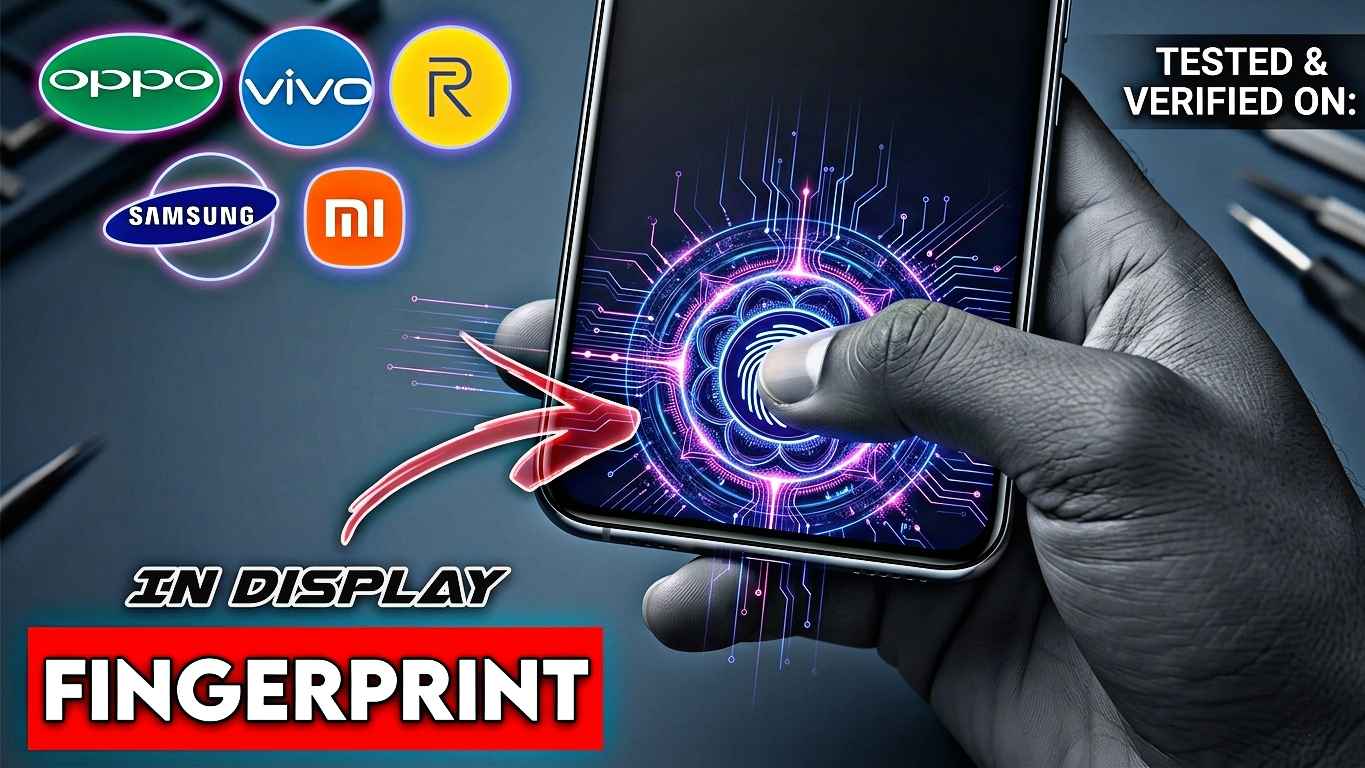
A few years ago, I remember buying a new Android phone mainly because it looked modern. The screen stretched from edge to edge, the bezels were tiny, and there was no fingerprint scanner on the back. For a moment, I thought the phone didn’t even have a fingerprint sensor.
Then the salesperson smiled and said, “Just place your thumb on the screen.”
That was my first experience with an in-display fingerprint sensor.
At the time, it felt like something from a science-fiction movie. Fast forward to 2026, and in-display fingerprint scanners have become a standard feature on many Android phones. From budget-friendly devices to premium flagships, this technology is everywhere.
After using multiple phones with in-display fingerprint sensors over the years, I’ve noticed that not all of them perform the same. Some unlock instantly, while others can be frustrating if your finger isn’t placed perfectly.
If you’re planning to buy a new Android phone or simply want to understand how this technology works, this guide covers everything you need to know.
What Is an In-Display Fingerprint Sensor?
An in-display fingerprint sensor is exactly what it sounds like—a fingerprint scanner built underneath the phone’s display.
Instead of touching a sensor on the back or side of the phone, you simply place your finger on a designated area of the screen. The phone scans your fingerprint and unlocks the device.
The biggest advantage is convenience. Manufacturers no longer need a dedicated fingerprint scanner area, allowing them to design cleaner-looking phones with larger displays.
Today, brands like Samsung, Xiaomi, OnePlus, Vivo, Oppo, Realme, and many others use in-display fingerprint technology in their Android devices.
How Does an In-Display Fingerprint Sensor Work?
Many people assume the phone somehow scans through the glass magically. The reality is actually pretty interesting.
There are two main types of in-display fingerprint sensors found in Android phones.
Optical Fingerprint Sensors
Optical sensors are the most common option in mid-range and budget Android phones.
When you place your finger on the screen:
- The display lights up the fingerprint area.
- A small camera-like sensor underneath captures an image of your fingerprint.
- The phone compares that image with the fingerprint stored in its secure system.
- If they match, the phone unlocks.
These sensors are usually fast and affordable.
However, they can struggle if your finger is very wet, dirty, or oily.
Ultrasonic Fingerprint Sensors
Ultrasonic sensors are generally found in premium flagship devices.
Instead of taking a picture, they use ultrasonic sound waves to create a detailed 3D map of your fingerprint.
This method offers several benefits:
- Better security
- Higher accuracy
- Improved performance with wet fingers
- Faster recognition in many situations
After using both technologies, I’ve noticed ultrasonic scanners tend to feel more reliable in everyday use, especially during winter when fingers are often dry.
Why Android Brands Love In-Display Sensors
There are several reasons manufacturers continue to adopt this technology.
Cleaner Design
One obvious benefit is aesthetics.
Without a dedicated scanner on the back, phones look more modern and minimalistic.
Larger Screen Space
Manufacturers can maximize screen size without sacrificing security features.
Easy One-Handed Use
Unlocking the device by touching the front display feels natural.
When the phone is lying on a desk, you don’t need to pick it up to unlock it.
Better Water Resistance Designs
Removing extra hardware openings can help manufacturers design phones with improved durability and water resistance.
My Real-World Experience Using In-Display Fingerprint Sensors
I’ve used Android phones with rear-mounted, side-mounted, and in-display fingerprint scanners.
The first generation of in-display sensors wasn’t perfect.
I often had to press harder than expected, and the unlock speed wasn’t always impressive.
Things have changed significantly by 2026.
Modern phones unlock almost instantly. On newer devices, the difference between a side-mounted scanner and an in-display scanner is barely noticeable.
One thing I learned the hard way was that fingerprint registration matters a lot.
When I rushed through the setup process, the scanner missed my fingerprint more often.
After deleting the fingerprint and registering it properly, recognition improved dramatically.
How to Set Up an In-Display Fingerprint Sensor Correctly
If you want the best possible accuracy, follow these steps.
Step 1: Clean the Screen
Before registering your fingerprint, wipe the screen with a microfiber cloth.
Dust and smudges can affect the scanning process.
Step 2: Wash and Dry Your Hands
Your fingers should be clean and dry during registration.
Step 3: Register Your Finger Slowly
Many users rush this step.
Instead, move your finger slightly each time the phone asks for another scan.
This helps the system capture more fingerprint angles.
Step 4: Add the Same Finger Twice
This is one of my favorite tricks.
Many Android phones allow multiple fingerprint entries.
Registering the same thumb twice often improves recognition accuracy.
Step 5: Update Your Phone
Fingerprint performance frequently improves through software updates.
Keeping your phone updated can make a noticeable difference.
Common Problems and How to Fix Them
Problem 1: Fingerprint Not Recognized
Possible causes:
- Dirty screen
- Wet finger
- Damaged screen protector
- Poor fingerprint registration
Solution:
Delete the saved fingerprint and register it again carefully.
Problem 2: Unlocking Feels Slow
Possible causes:
- Battery saver mode
- Older software version
- Cheap screen protector
Solution:
Install updates and test without the screen protector if possible.
Problem 3: Sensor Stops Working Randomly
Sometimes temporary software glitches cause problems.
A simple restart often solves the issue.
If not, clearing biometric settings and re-registering fingerprints usually helps.
Do Screen Protectors Affect In-Display Fingerprint Sensors?
Absolutely.
This is something many Android users discover after buying a new tempered glass protector.
I’ve personally experienced situations where fingerprint accuracy dropped immediately after installing a low-quality screen protector.
Premium protectors are usually optimized for in-display scanners.
When shopping for a protector, check whether it specifically supports in-display fingerprint sensors.
This small detail can save a lot of frustration.
Are In-Display Fingerprint Sensors Safe?
For everyday users, modern fingerprint systems are extremely secure.
Your fingerprint data is typically stored in a secure hardware area inside the phone rather than being uploaded online.
That means your biometric information stays protected even if apps are compromised.
Still, no security system is perfect.
For maximum protection:
- Use a strong PIN or password
- Enable two-factor authentication where possible
- Keep software updated
Combining fingerprint security with a strong lock screen password offers the best protection.
Best Uses for In-Display Fingerprint Sensors
Most people think fingerprint scanners are only for unlocking phones.
In reality, they can do much more.
Mobile Banking
Many banking apps support fingerprint authentication.
Instead of typing passwords repeatedly, you can securely sign in with your fingerprint.
Digital Payments
Apps that support biometric verification make payments faster and safer.
Password Managers
Many password management apps use fingerprint authentication to protect sensitive information.
Secure Notes and Files
Some Android devices allow fingerprint-protected folders and private files.
This adds another layer of security for personal documents and photos.
In-Display Fingerprint vs Face Unlock
A question I hear frequently is whether fingerprint unlocking is better than face unlock.
After using both extensively, my answer is simple: they work best together.
Fingerprint Unlock Advantages:
- Works in darkness
- Usually more secure
- Reliable in various lighting conditions
Face Unlock Advantages:
- Hands-free convenience
- Extremely fast on supported devices
Most modern Android phones allow both methods simultaneously, giving users flexibility.
Common Mistakes Android Users Make
Over the years, I’ve seen several mistakes repeated again and again.
Pressing Too Quickly
Many users tap the fingerprint area and immediately remove their finger.
Keeping your finger in place for a brief moment often improves recognition.
Ignoring Software Updates
Manufacturers frequently improve fingerprint performance through updates.
Skipping updates means missing these improvements.
Using Cheap Screen Protectors
A poor-quality protector can reduce accuracy dramatically.
Registering Fingerprints in a Hurry
Fingerprint setup only takes a few minutes, but doing it properly pays off every day.
What to Expect from In-Display Fingerprint Sensors in 2026 and Beyond
Fingerprint technology has improved dramatically over the last few years.
Manufacturers are now working on:
- Larger scanning areas
- Faster recognition speeds
- Better accuracy with wet fingers
- Improved security features
- Lower power consumption
Some prototypes even demonstrate full-screen fingerprint scanning, allowing users to unlock their devices by touching almost anywhere on the display.
While those features aren’t common yet, the direction is clear.
Fingerprint technology is becoming more seamless and invisible.
Final Thoughts
After years of using Android phones with different unlocking methods, in-display fingerprint sensors have become my preferred choice. They keep the phone’s design clean, work quickly, and provide a good balance between convenience and security.
The biggest lesson I’ve learned is that setup matters more than people realize. A properly registered fingerprint, a quality screen protector, and regular software updates can make the difference between a frustrating experience and a flawless one.
If you’re shopping for an Android phone in 2026, don’t just check whether it has an in-display fingerprint sensor. Pay attention to the type of sensor, real-world performance, and user reviews. A good fingerprint scanner is something you’ll use dozens of times every day, so it’s worth choosing wisely.