A few months ago, I was traveling with only my Android phone in my pocket. I had planned to carry my laptop, but I forgot it at home. At first, I thought my day was ruined because I needed to check documents, answer emails, and do some basic work.
Instead of panicking, I connected my phone to a monitor that was available at the office, paired a wireless keyboard and mouse, and surprisingly ended up with something that felt very close to a Windows PC experience.
That day completely changed how I look at modern Android phones.
If you’ve ever wished your phone could work like a computer, the good news is that Android devices in 2026 are more powerful than ever. With the right apps and setup, you can turn your Android phone into a desktop-style workstation that feels surprisingly similar to using Windows.
This guide will show you exactly how to do it, what tools work best, and the mistakes I learned to avoid.
Why Turn an Android Phone into a Windows-Like Computer?
Modern smartphones have enough power to handle many everyday computer tasks.
You can:
- Browse the web with multiple tabs
- Edit documents and spreadsheets
- Attend video meetings
- Manage emails
- Watch videos on a larger screen
- Use a keyboard and mouse
- Access cloud-based software
- Connect to a remote Windows PC
For students, freelancers, travelers, and remote workers, this setup can be incredibly useful.
What You’ll Need
Before getting started, gather a few things:
Basic Setup
- Android phone running a recent Android version
- USB-C cable or USB-C hub
- Wireless keyboard
- Wireless mouse
- Monitor or TV (optional but recommended)
Helpful Accessories
- USB-C to HDMI adapter
- Phone stand
- Portable Bluetooth keyboard
- Wireless mouse
- Power bank
I initially tried using only the phone screen, but after connecting it to a larger display, the experience became much more comfortable.
Method 1: Use Android Desktop Mode
Many Android phones now include desktop-style features.
Brands such as:
- Samsung
- Motorola
- Xiaomi
- Honor
- Huawei
offer desktop environments that look similar to a traditional computer interface.
When connected to a monitor, the screen transforms into a desktop layout with:
- Resizable windows
- Taskbar-style navigation
- Multiple app windows
- Keyboard shortcuts
How to Enable It
- Connect your phone to a monitor using HDMI.
- Pair a keyboard and mouse.
- Enable desktop mode if prompted.
- Launch apps in windowed mode.
The first time I tried Samsung’s desktop environment, I was surprised by how natural it felt. Opening multiple browser windows and switching between apps felt very close to using a regular PC.
Method 2: Install a Desktop Launcher
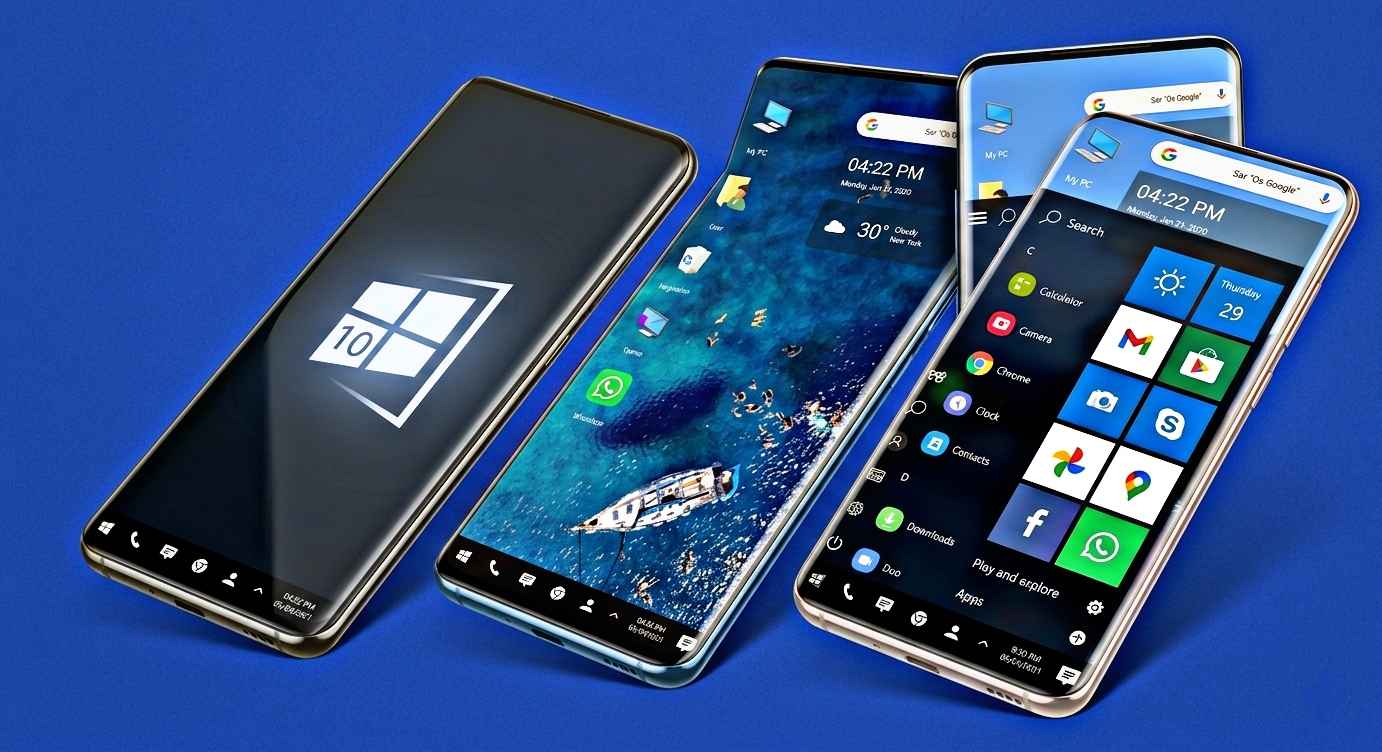
If your phone doesn’t have a built-in desktop mode, a desktop launcher can create a Windows-like appearance.
Popular options include:
- Computer Launcher
- Win-X Launcher
- Taskbar
- Sentio Desktop alternatives
These apps provide:
- Start menu style navigation
- Desktop icons
- File explorer shortcuts
- Taskbar-style controls
While they don’t transform Android into actual Windows, they make the interface feel much more familiar.
Steps
- Download a desktop launcher.
- Set it as your default launcher.
- Customize icons and layout.
- Connect a keyboard and mouse for the best experience.
Method 3: Connect to a Real Windows Computer Remotely
This is one of my favorite methods because it gives you access to an actual Windows environment.
Instead of imitating Windows, your phone connects to a real Windows PC over the internet.
Useful Remote Desktop Apps
- Microsoft Remote Desktop
- AnyDesk
- TeamViewer
- Chrome Remote Desktop
How It Works
- Install a remote desktop app on your PC.
- Install the companion app on your Android phone.
- Sign in and connect.
- Access your Windows desktop remotely.
I often use this setup when traveling. As long as my home computer remains online, I can access files, software, and work projects from almost anywhere.
Method 4: Use Cloud PCs
Cloud computing has improved dramatically in 2026.
Instead of buying expensive hardware, some users rent cloud-based Windows computers.
These services provide a virtual Windows machine that runs on powerful remote servers.
Benefits include:
- Access from any Android device
- No powerful hardware required
- Large storage options
- Better performance for demanding tasks
This approach is especially useful for people who need occasional access to Windows software.
Creating a More Windows-Like Workspace
The little details make a huge difference.
Here are some tweaks I personally use:
Add a Wireless Keyboard
Typing long emails on a touchscreen gets tiring quickly.
A compact Bluetooth keyboard makes the setup feel more professional and productive.
Use a Mouse
A mouse improves navigation dramatically, especially when working with spreadsheets or documents.
Organize Your Desktop
Create folders for:
- Work files
- Documents
- Downloads
- Media
This simple step makes Android feel much closer to a desktop operating system.
Use Desktop-Friendly Browsers
Browsers such as:
- Google Chrome
- Microsoft Edge
- Firefox
offer desktop viewing modes that improve productivity.
Best Apps for a PC-Like Experience
Here are some apps that helped me create a complete workstation from my phone.
Microsoft Office
Perfect for:
- Word documents
- Excel spreadsheets
- PowerPoint presentations
Google Workspace
Great for cloud-based productivity.
Files by Google
Makes file management easier and more organized.
Microsoft Edge
Offers excellent desktop-style browsing.
Adobe Acrobat
Useful for handling PDFs and digital documents.
Real-Life Uses for This Setup
Many people assume this setup is only a tech experiment, but I actually use it regularly.
Working While Traveling
When carrying a laptop isn’t practical, a phone plus keyboard setup works surprisingly well.
Emergency Backup Computer
If your PC stops working unexpectedly, your Android phone can temporarily replace it for many basic tasks.
Student Productivity
Students can:
- Write assignments
- Research online
- Join online classes
- Create presentations
without needing a dedicated laptop all the time.
Home Entertainment
Connect your phone to a TV and enjoy:
- Streaming
- Gaming
- Web browsing
- Video calls
on a larger screen.
Common Mistakes to Avoid
I made several mistakes when experimenting with desktop-style Android setups.
Expecting Full Windows Compatibility
Android can imitate many computer functions, but it cannot run every Windows program natively.
Some desktop software simply won’t work without remote access or cloud solutions.
Using a Cheap Adapter
A low-quality HDMI adapter caused random display issues for me.
Investing in a reliable adapter solved the problem immediately.
Ignoring Battery Usage
Desktop-style usage can drain battery quickly.
Whenever possible, keep the phone connected to power.
Too Many Background Apps
Running dozens of apps simultaneously can slow performance.
Close apps you’re not using to keep things smooth.
Performance Tips for 2026
To get the best experience:
- Keep Android updated
- Clear unnecessary files regularly
- Use fast storage
- Restart occasionally
- Disable unused background apps
- Maintain available storage space
These small habits noticeably improve performance over time.
Is It Really a Replacement for a Windows Computer?
For some people, yes.
For others, not completely.
If your daily tasks involve:
- Web browsing
- Documents
- Video meetings
- Cloud applications
then a modern Android phone can handle them surprisingly well.
If you rely on specialized software, advanced video editing, programming environments, or high-end gaming, a dedicated Windows PC is still the better choice.
The biggest surprise for me was discovering how much work I could actually complete from a phone. What started as an emergency solution became something I now use regularly when traveling or working away from my desk.
Android phones in 2026 are incredibly powerful. With the right accessories, apps, and setup, they can deliver a desktop-like experience that was almost impossible just a few years ago. Whether you’re looking for a portable workstation, a backup computer, or simply a fun tech project, turning your Android phone into a Windows-style computer is definitely worth trying.