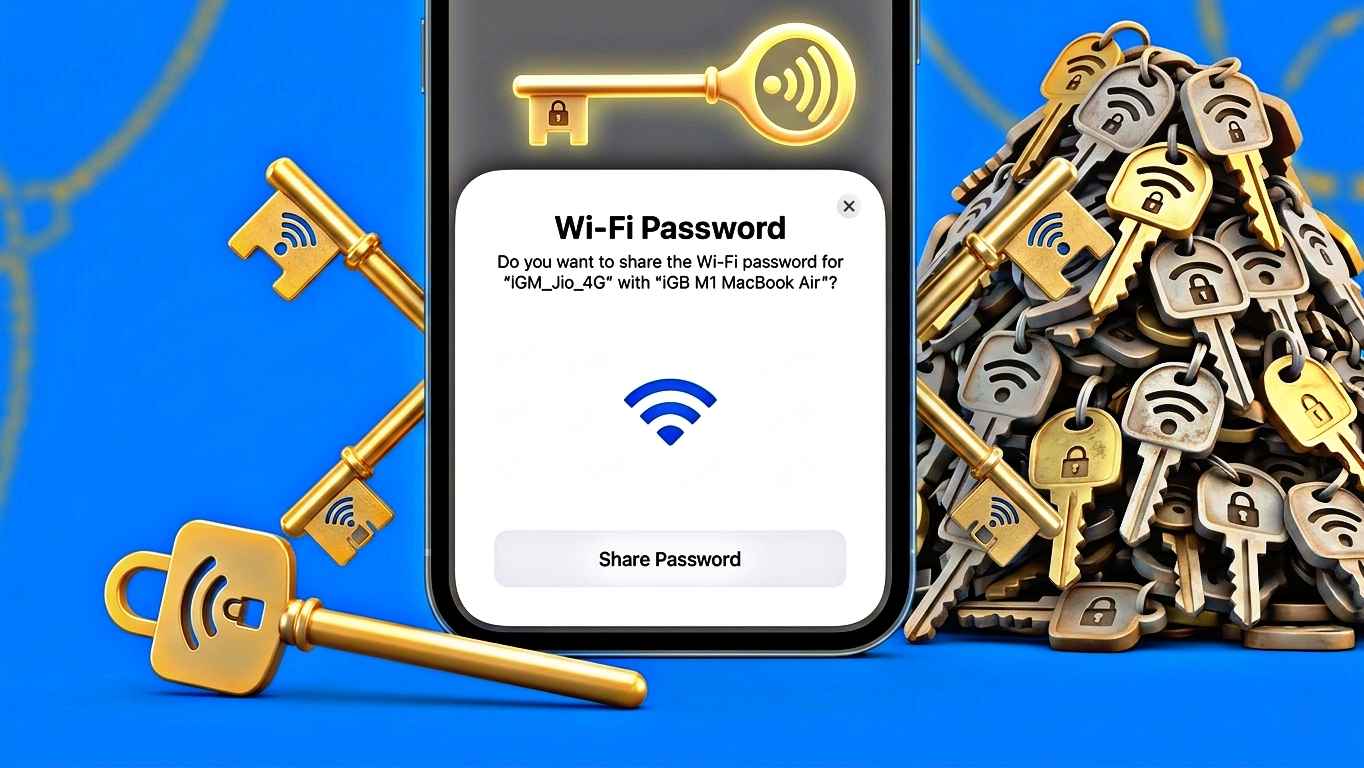
A few weeks ago, a friend came over to my house and asked for the WiFi password. Normally, this sounds like a simple request, but my WiFi password was one of those long, random combinations of letters, numbers, and symbols that nobody can remember.
I opened my phone, showed him a QR code, and within seconds he was connected. No typing. No spelling mistakes. No repeated attempts.
That small moment reminded me how useful WiFi QR code password scanners have become. In 2026, most Android phones and many other devices can connect to a WiFi network just by scanning a QR code. It saves time and avoids the frustration of manually entering complicated passwords.
If you’ve never used this feature before, this guide will show you exactly how it works, how to scan WiFi QR codes, and a few mistakes to avoid.
What Is a WiFi QR Code Password Scanner?
A WiFi QR code contains your network information, including:
- WiFi network name (SSID)
- Security type
- Password
When someone scans the code with a compatible device, the phone reads the information and offers an option to connect automatically.
Think of it as a shortcut that replaces manual password entry.
I started using it mainly because guests kept asking for the password. After switching to QR codes, sharing WiFi became much easier.
Why People Use WiFi QR Codes in 2026
The biggest reason is convenience.
Most home WiFi passwords are now generated automatically by routers. They often look something like:
X7K9mP2#Qw8Lz4
Nobody wants to type that manually.
A QR code eliminates:
- Typing errors
- Password confusion
- Time wasted reconnecting devices
- Repeated password sharing
It’s also useful in:
- Homes
- Offices
- Cafes
- Small businesses
- Classrooms
- Guest houses
Many restaurants and coffee shops now display WiFi QR codes near the counter instead of telling customers the password.
How to Scan a WiFi QR Code on Android
Most Android phones already support this feature.
Method 1: Using the Camera App
This is the easiest method.
Step 1
Open your phone’s Camera app.
Step 2
Point the camera at the WiFi QR code.
Step 3
Wait a second or two.
Step 4
A notification should appear showing the WiFi network.
Step 5
Tap Connect.
Your phone will automatically join the network if the information inside the QR code is correct.
I tested this recently on a Samsung Galaxy phone and it worked almost instantly.
How to Scan a WiFi QR Code From an Image
Sometimes the QR code isn’t printed.
You may receive it through:
- Telegram
- Screenshot
- Gallery image
In that case, scanning through the camera won’t work because the QR code is already inside your phone.
Here’s what I do:
Step 1
Open the image in Gallery.
Step 2
Use Google Lens.
Many Android phones have Lens built directly into the Gallery app.
Step 3
Tap the QR code.
Step 4
Google Lens reads the WiFi information and shows the connection option.
This method has saved me multiple times when family members sent WiFi screenshots instead of showing the QR code physically.
How to Scan WiFi QR Codes on iPhone
Apple has improved QR code support significantly over the years.
Step 1
Open Camera.
Step 2
Point it at the WiFi QR code.
Step 3
Wait for the notification banner.
Step 4
Tap Join Network.
The iPhone automatically fills in the network details and connects.
Most modern iPhones support this feature without needing additional apps.
How to Create Your Own WiFi QR Code
Creating a WiFi QR code is surprisingly easy.
On Android
Many Android phones include this feature.
Step 1
Open Settings.
Step 2
Go to WiFi.
Step 3
Select your connected network.
Step 4
Tap Share.
Step 5
Authenticate with fingerprint, PIN, or password.
Step 6
Your phone generates a QR code.
You can now let others scan it.
I use this feature regularly when relatives visit because it’s much faster than reading the password aloud.
Best Apps for WiFi QR Code Scanning
Most users don’t need a third-party app anymore.
However, if your device lacks built-in support, these options can help:
Google Lens
One of the most reliable options.
Useful for:
- Screenshots
- Saved images
- Printed QR codes
QR & Barcode Scanner
A lightweight scanner that works with many QR code formats.
QR Code Reader
Simple and beginner-friendly.
Before installing any scanner app, check reviews and permissions. Some free apps request unnecessary access to contacts or files.
Real-Life Situations Where WiFi QR Codes Help
Family Gatherings
Every family event seems to include the same question:
“What’s the WiFi password?”
Instead of repeating it ten times, I simply show the QR code.
Office Visitors
Visitors can connect quickly without asking employees for credentials.
Small Businesses
Coffee shops and waiting areas can display QR codes on tables or walls.
New Devices
When setting up tablets or secondary phones, QR codes speed up the connection process.
Common Problems and Fixes
Even though the process is simple, a few issues can appear.
QR Code Doesn’t Scan
Possible causes:
- Poor lighting
- Blurry image
- Damaged printout
- Dirty camera lens
Try improving the lighting and cleaning the camera lens.
Phone Detects QR Code But Won’t Connect
This usually happens when:
- WiFi password has changed
- Router settings were updated
- QR code is outdated
Generate a new QR code from the router or connected device.
No QR Option Appears
Some older devices may not support automatic WiFi QR recognition.
In that case:
- Update the phone software
- Use Google Lens
- Try a trusted QR scanner app
Mistakes People Often Make
Over time I’ve noticed several common mistakes.
Using Old Screenshots
Many people save a WiFi QR code screenshot and continue sharing it even after changing the router password.
The QR code becomes useless once the password changes.
Downloading Random Scanner Apps
Some scanner apps are filled with ads and unnecessary permissions.
Most modern phones already have built-in QR support.
Sharing Publicly
A WiFi QR code contains your network credentials.
Avoid posting it publicly on social media unless you’re comfortable sharing access to that network.
Ignoring Router Updates
Sometimes connection issues are caused by router settings rather than the QR code itself.
Always verify that the network is working normally before blaming the scanner.
Is Scanning a WiFi QR Code Safe?
Generally, yes.
The QR code simply stores network details.
However, you should only scan QR codes from trusted sources.
Just like clicking unknown links, scanning random QR codes from strangers isn’t a great idea.
If you’re unsure where the code came from, avoid connecting.
My Experience Using WiFi QR Codes
A few years ago, I rarely used QR codes for WiFi. I thought manually entering passwords wasn’t a big deal.
After using the feature regularly, I changed my mind.
The biggest advantage isn’t speed—it’s convenience.
Whether it’s helping guests connect, setting up a new device, or sharing internet access with family, QR codes remove unnecessary steps.
Now, whenever someone asks for my WiFi password, I don’t even remember the password myself. I simply open the QR code and let them scan it.
That alone has probably saved me hours of explaining complicated passwords over the past year.
Final Thoughts
WiFi QR code password scanners have become one of those small features that quietly make everyday life easier. Instead of typing long passwords and dealing with connection errors, users can connect in seconds with a simple scan.
If your phone supports QR scanning, there’s a good chance you already have everything you need. Try generating a WiFi QR code from your current network and keep it handy for guests. Once you start using it, you’ll probably wonder why you didn’t switch earlier.