A few weeks ago, I was sitting in a noisy café when my phone started ringing. The problem? I couldn’t hear it at all.
My phone was on the table right in front of me, but because of the background noise, I completely missed the call. A friend sitting across from me pointed at my phone and said, “Your camera flash is blinking like crazy!”
That was the moment I realized how useful the incoming call lighting feature can be.
Since then, I’ve been using different incoming call lighting tricks on both Android and iPhone devices, and honestly, it has become one of my favorite phone customizations. Not only does it help me notice calls instantly, but it also makes the phone look much more modern and stylish.
The best part is that most of these tricks are completely free and take only a few minutes to set up.
If you’ve never tried incoming call lighting before, here’s everything you need to know.
What Is the Incoming Call Lighting Trick?
The incoming call lighting trick is a feature that adds visual effects whenever someone calls your phone.
Instead of relying only on a ringtone or vibration, your phone can:
- Flash the camera LED
- Light up the screen edges
- Display colorful call animations
- Show glowing effects around the display
- Create notification lighting effects
This makes incoming calls much easier to notice, especially in noisy environments or when your phone is on silent mode.
Why I Started Using It
At first, I thought these lighting effects were just for looks.
After using them for a while, I discovered they are actually practical.
Some situations where they helped me:
- While working in a busy office
- During meetings with the phone on silent
- When listening to music with headphones
- While driving with the phone mounted
- When the phone was across the room
A bright flashing light catches your attention much faster than a vibration.
Method 1: Enable Built-In Flash Notifications (Android)
Most modern Android phones already include this feature.
I tested it on Samsung, Xiaomi, Realme, Vivo, and Oppo devices.
Steps:
- Open Settings
- Search for Flash Notification
- Tap the feature
- Enable Camera Flash Notification
- Enable Screen Flash Notification (if available)
Now whenever a call arrives, the flash starts blinking automatically.
No app required.
No payment required.
Just a few taps.
Method 2: Use Edge Lighting for Incoming Calls
This is probably my favorite trick.
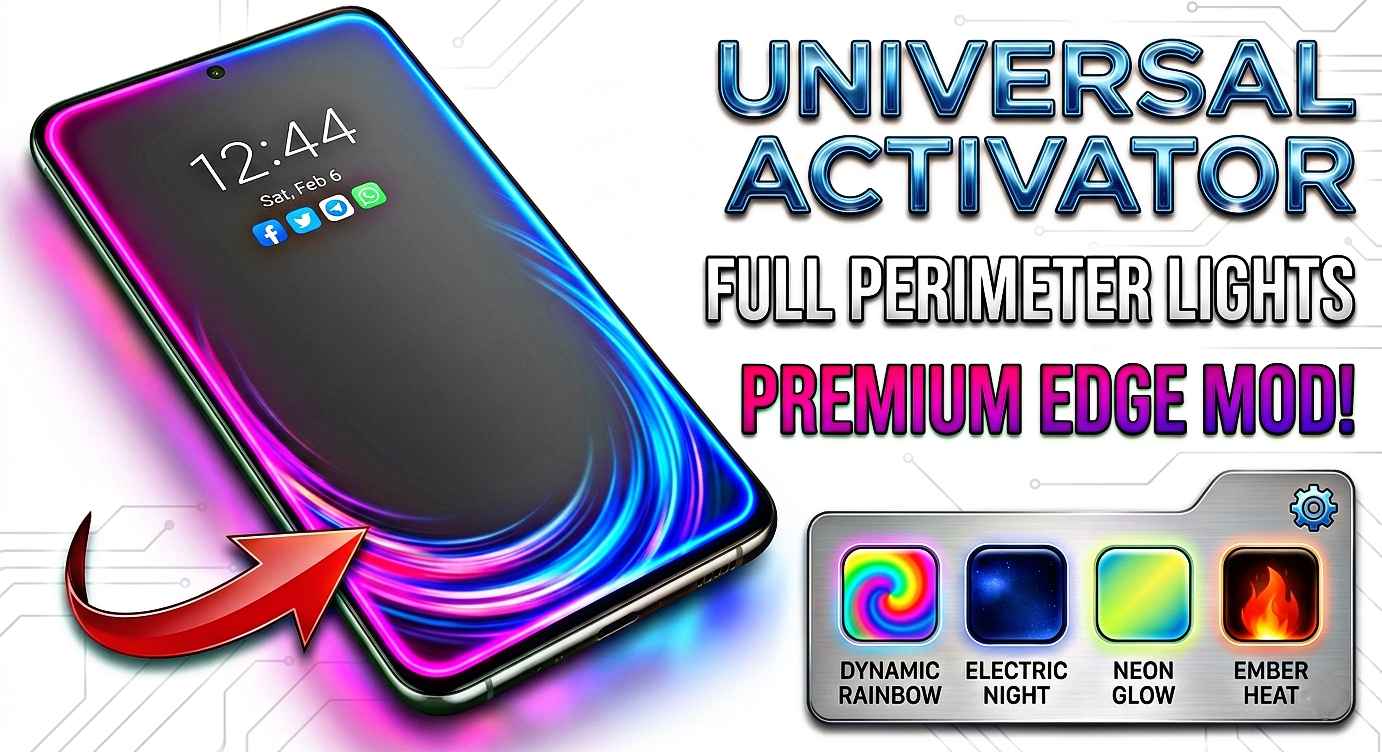
Instead of flashing the camera LED, the edges of the display glow with colorful animations.
Many Samsung devices already include Edge Lighting.
To Enable It:
- Open Settings
- Go to Notifications
- Tap Edge Lighting
- Select a lighting style
- Choose your preferred color
When someone calls, the edges of the screen create a beautiful glowing effect.
It looks surprisingly premium.
Method 3: Install a Free Call Lighting App
If your phone doesn’t have built-in lighting effects, several free apps can help.
Some popular options include:
- Call Flash
- Edge Lighting
- Color Call Screen
- Flash Alerts
- LED Flash Notification
I tested a few of these apps on an older Android device.
The results were decent, but here’s something important I learned:
Always check app permissions before installing.
Some apps request access to contacts, storage, or unnecessary data.
Choose apps with good ratings and only grant permissions that are actually needed.
My Favorite Setup
After trying different options, here’s the setup I use:
- Camera flash blinking for calls
- Blue edge lighting effect
- Moderate screen brightness
- Standard ringtone
This combination helps me notice calls instantly without being distracting.
Method 4: Incoming Call Lighting on iPhone
iPhone users can also use a similar feature.
Apple includes LED flash alerts inside Accessibility settings.
Steps:
- Open Settings
- Tap Accessibility
- Select Audio & Visual
- Enable LED Flash for Alerts
Now the flashlight will blink whenever a call arrives.
This feature is especially useful when the phone is on silent mode.
Real-Life Situations Where It Helps
During Meetings
I often keep my phone silent during work.
Without visual alerts, calls can be missed easily.
The lighting effect instantly grabs attention without disturbing others.
At Night
Sometimes the phone is across the room while charging.
A flashing light is much easier to notice than a quiet ringtone.
For Elderly Users
I helped my uncle enable flash notifications on his phone.
Because his hearing isn’t as strong as it used to be, the flashing light helps him notice calls immediately.
In Crowded Places
Markets, public transport, and shopping malls can be extremely noisy.
Visual call alerts work surprisingly well in these situations.
Customizing the Lighting Effect
Most phones allow some level of customization.
You can often adjust:
- Flash speed
- Light color
- Animation style
- Brightness level
- Screen glow effect
I recommend keeping things simple.
Some users choose very flashy animations, but after a few days they can become annoying.
A clean and subtle effect usually works best.
Common Mistakes to Avoid
Using Maximum Brightness
One mistake I made was enabling extremely bright lighting effects.
The phone looked impressive, but it drained the battery faster.
Moderate brightness works better.
Installing Too Many Apps
I tested several lighting apps at once.
The result?
Notifications became inconsistent and sometimes overlapped.
Stick with one reliable app.
Ignoring Battery Usage
Certain animation-heavy apps run in the background continuously.
Check battery statistics occasionally to make sure the app isn’t consuming excessive power.
Granting Unnecessary Permissions
Not every lighting app needs access to your contacts or storage.
Read permission requests carefully before accepting them.
Does Incoming Call Lighting Drain Battery?
This is one of the most common questions.
From my experience, the battery impact is usually very small when using built-in features.
Third-party apps may consume more power depending on how they operate.
If battery life is important to you, use the phone’s built-in flash notification settings whenever possible.
Is It Safe to Use?
Yes, when using built-in Android or iPhone features.
For third-party apps:
- Download from official app stores
- Read user reviews
- Check permissions
- Avoid unknown developers
Following these basic precautions keeps things safe.
My Honest Experience After Several Weeks
I originally enabled incoming call lighting because I thought it looked cool.
What surprised me was how useful it became in daily life.
I miss fewer calls.
I notice notifications faster.
And my phone feels a little more personalized.
It’s one of those small features that doesn’t seem important until you start using it regularly.
Once you get used to visual call alerts, going back to a standard ringtone feels surprisingly old-fashioned.
Final Thoughts
The incoming call lighting trick is one of the easiest phone customizations you can try in 2026. Whether you choose a simple flash notification, colorful edge lighting, or a dedicated call lighting app, the setup process takes only a few minutes and costs nothing.
If you’re someone who frequently misses calls because of noise, silent mode, or distractions, this feature is worth trying. Start with your phone’s built-in settings first, experiment with different lighting styles, and find a setup that matches your daily routine.
Sometimes the simplest smartphone tricks end up being the most useful, and incoming call lighting is a perfect example.