A few years ago, I carried a dedicated camera whenever I traveled. Today, most of my photos come from my Android phone. The funny part is that the biggest improvement didn’t come from buying a new phone—it came from using the right camera app.
I still remember taking sunset photos on a trip and feeling disappointed when I checked the results later. The sky looked dull, the colors were flat, and everything seemed over-processed. My phone had decent camera hardware, but the default camera app wasn’t giving me much control.
That experience pushed me to test different DSLR-style camera apps for Android. Some were packed with features but difficult to use. Others looked professional but were filled with ads or locked important settings behind paywalls.
After trying dozens of camera apps over the years, I’ve found several free options that genuinely help Android users capture better photos without spending money.
If you’re looking for the best free DSLR camera app for Android in 2026, this guide will help you choose the right one.
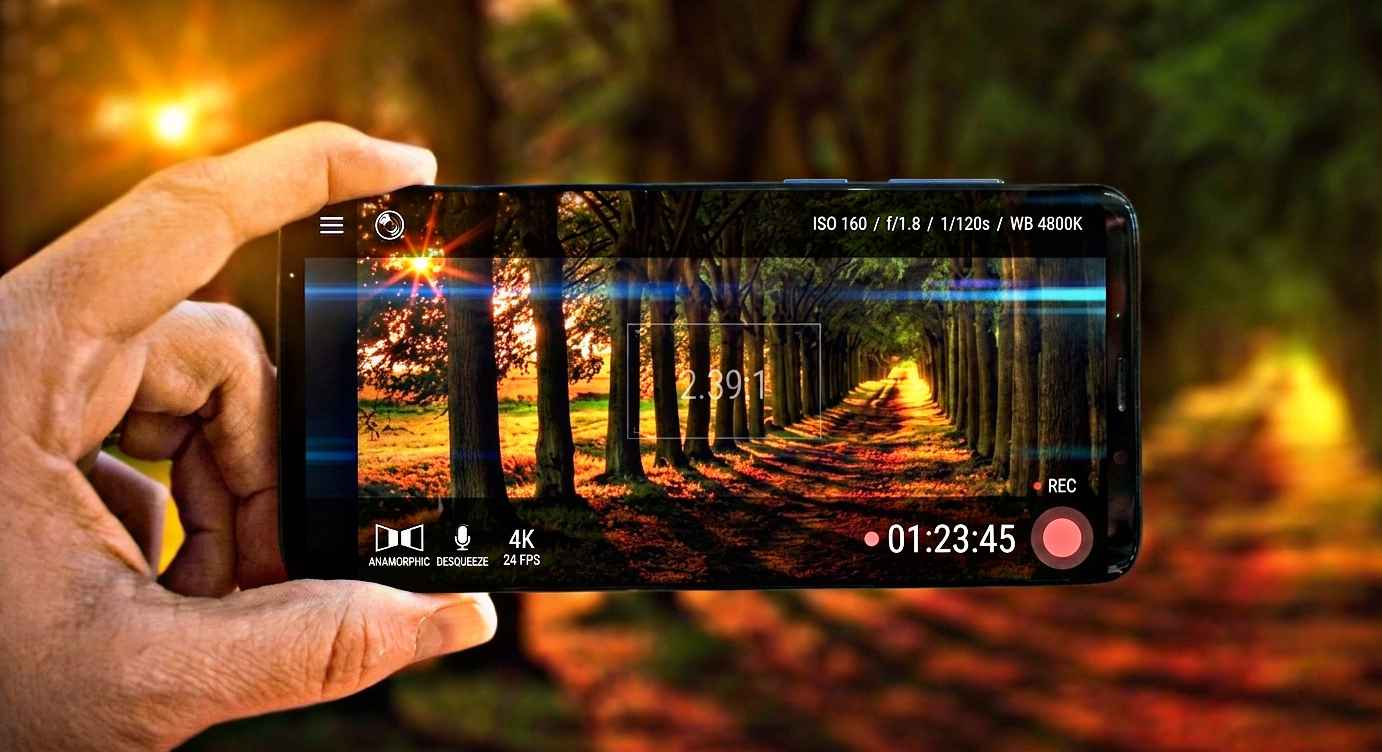
What Makes a Camera App Feel Like a DSLR?
A DSLR camera gives photographers control over settings such as:
- ISO
- Shutter speed
- White balance
- Focus
- Exposure
- RAW photo capture
Most default Android camera apps automate everything. That’s convenient, but it limits creativity.
A good DSLR-style camera app gives you manual controls while keeping the interface simple enough for everyday use.
My Top Pick: Open Camera
If someone asks me for one free DSLR camera app, my answer is usually Open Camera.
I’ve used it on multiple Android phones, from budget devices to flagship models, and it consistently delivers impressive results.
Why I Like It
- Completely free
- No annoying ads
- Manual controls
- RAW support
- Exposure adjustment
- HDR modes
- Focus control
- Lightweight and fast
The first time I used Open Camera, I was surprised by how much control it offered without feeling complicated.
For example, while shooting city lights at night, I manually adjusted exposure and focus. The image looked noticeably sharper than what I captured with the stock camera app.
Best For
- Travel photography
- Night photography
- Landscape shots
- Learning manual photography
Camera FV-5 Lite
Camera FV-5 Lite has been around for years, and it’s still popular among photography enthusiasts.
This app feels closer to using an actual camera because many settings are displayed directly on the screen.
Features
- DSLR-style controls
- Manual exposure
- ISO adjustment
- Focus modes
- Long exposure support
- Time-lapse photography
One thing I learned while using Camera FV-5 Lite is that manual settings can dramatically improve low-light photos.
At first, I made the common mistake of pushing ISO too high. My photos became grainy and noisy. Once I started balancing ISO and shutter speed correctly, the results improved significantly.
Best For
- Photography learners
- Creative shooting
- Low-light experiments
ProCam X Lite
ProCam X Lite is another excellent free option that gives Android users DSLR-like controls.
I tested it during a family gathering where indoor lighting was challenging. The app allowed me to manually tweak exposure and white balance, helping produce more natural-looking skin tones.
Features
- Manual focus
- Manual ISO
- Manual shutter speed
- Burst mode
- Face detection
- Video recording controls
The interface is beginner-friendly, which makes it easier for new users compared to some advanced camera apps.
Best For
- Family photography
- Portraits
- Everyday photography
HedgeCam 2
HedgeCam 2 is based on Open Camera but adds additional customization options.
Many photography enthusiasts prefer it because of the extra control it offers.
Features
- Manual settings
- Focus peaking
- Advanced exposure controls
- Noise reduction options
- Customizable interface
I spent a weekend comparing HedgeCam 2 and Open Camera side by side. While Open Camera felt simpler, HedgeCam 2 offered more fine-tuning options for users who enjoy experimenting.
Best For
- Advanced users
- Manual photography enthusiasts
- Detailed camera customization
Footej Camera 2
Footej Camera 2 strikes a nice balance between simplicity and advanced features.
Unlike some camera apps that overwhelm beginners with settings, Footej keeps things organized and easy to understand.
Features
- RAW support
- Slow-motion recording
- Manual controls
- Burst mode
- Timelapse mode
One thing I appreciated was how quickly the app launched. When trying to capture moving subjects, every second matters.
Best For
- Casual photographers
- Social media creators
- Quick photography sessions
Step-by-Step: How to Use a DSLR Camera App Effectively
Installing a DSLR camera app is easy. Getting DSLR-like results takes a little practice.
Here’s the process I usually recommend.
Step 1: Enable Manual Mode
Open your camera app and switch from Auto to Manual or Pro mode.
This gives access to settings that normally stay hidden.
Step 2: Adjust ISO Carefully
Lower ISO values produce cleaner images.
Use:
- ISO 100–200 in daylight
- ISO 400–800 indoors
- Higher values only when necessary
A common beginner mistake is raising ISO too much, which creates image noise.
Step 3: Learn Exposure Compensation
Exposure compensation brightens or darkens photos.
Small adjustments can make a huge difference, especially during sunsets or indoor photography.
Step 4: Use Manual Focus
Auto-focus occasionally misses the subject.
For close-up photography, manual focus often produces sharper results.
Step 5: Try RAW Photography
RAW files preserve more image information.
When I started editing RAW photos, I noticed I could recover details from shadows and highlights that JPEG images had already lost.
Step 6: Stabilize Your Phone
Even the best camera app can’t fix a shaky hand.
Use:
- A tripod
- A stable surface
- Both hands while shooting
This becomes especially important for night photography.
Real-Life Situations Where DSLR Apps Help
Night Photography
Stock camera apps often struggle with low light.
Manual controls allow you to:
- Lower ISO
- Increase shutter speed
- Reduce image noise
The difference can be dramatic.
Food Photography
I often take photos at restaurants before eating.
Manual focus helps make food appear sharper and more detailed than standard auto mode.
Travel Photography
When photographing landscapes, adjusting exposure manually helps preserve sky details and natural colors.
Portrait Photography
Controlling white balance manually often produces more realistic skin tones.
Common Mistakes People Make
After helping friends improve their phone photography, I’ve noticed several recurring mistakes.
Using Maximum Zoom
Digital zoom usually reduces image quality.
Instead:
- Move closer to the subject
- Crop later if needed
Ignoring Lighting
Even expensive phones struggle in poor lighting.
Good lighting matters more than fancy camera settings.
Overediting Photos
Many users apply excessive filters.
Natural edits generally look better and age better over time.
Keeping Everything on Auto
Auto mode is convenient, but learning manual controls unlocks much better results.
Which Free DSLR Camera App Should You Choose?
Here’s my quick recommendation:
Choose Open Camera if:
- You want the best overall free option.
- You like clean interfaces.
- You want powerful manual controls.
Choose Camera FV-5 Lite if:
- You want a DSLR-like experience.
- You enjoy learning photography.
Choose ProCam X Lite if:
- You prefer a beginner-friendly design.
- You mainly shoot portraits and family photos.
Choose HedgeCam 2 if:
- You enjoy advanced settings.
- You like customizing everything.
Choose Footej Camera 2 if:
- You want a balance between simplicity and features.
- You create content for social media.
Final Thoughts
The truth is that most modern Android phones already have surprisingly capable camera hardware. The problem isn’t usually the camera itself—it’s the lack of control offered by default camera apps.
When I first started experimenting with DSLR-style camera apps, I expected only minor improvements. Instead, I found myself capturing sharper landscapes, cleaner night shots, and more natural portraits without spending a single dollar on new hardware.
For most Android users in 2026, Open Camera remains the easiest recommendation because it’s free, reliable, lightweight, and packed with useful features. But every app on this list can help you get more out of your phone’s camera.
Spend a few days learning manual controls, experiment with different settings, and you’ll quickly discover that your Android phone is capable of much more than simple point-and-shoot photography.